Troubleshooting Common eSIM Activation Issues
Troubleshooting Common eSIM Activation Issues
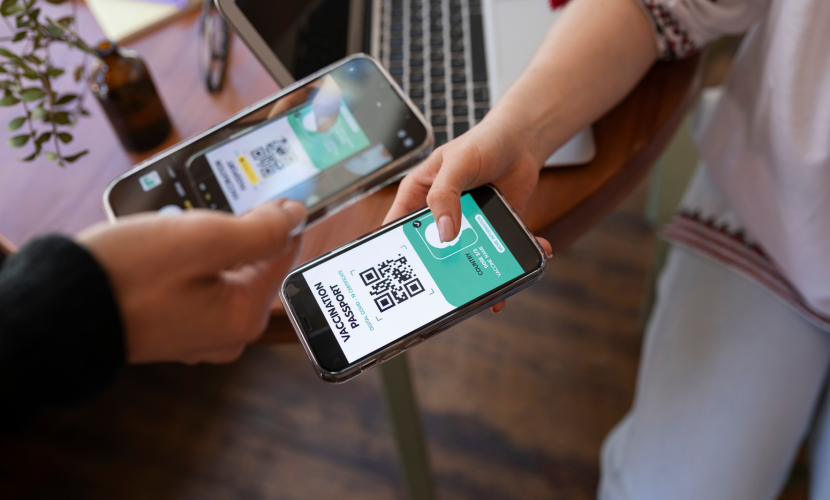
Setting up an eSIM is usually quick. Scan a QR code, follow a few prompts, and you’re connected.
But when something goes wrong, it can be frustrating. You might see “No Service.” The QR code won’t scan. The plan installs but doesn’t activate. And suddenly what should take five minutes turns into a tech headache.
The good news is most eSIM activation issues are easy to fix.
Here’s a clear, practical guide to solving the most common problems.
1. The QR Code Won’t Scan
This is one of the most common issues.
Possible causes:
Poor lighting
Blurry or low-resolution QR code
Dirty camera lens
Screenshot distortion
How to fix it:
Clean your camera lens
Increase screen brightness if scanning from another device
Print the QR code if needed
Move the phone slightly farther away from the screen
If scanning still fails, most carriers provide a manual activation code you can enter instead.
2. “No Service” After Installation
You installed the eSIM successfully, but there’s no signal.
Try this first:
Turn on Airplane Mode for 10 seconds
Turn it off
Restart your phone
If that doesn’t work, check these settings:
Make sure the eSIM line is turned on
Confirm it’s selected as your mobile data line
Enable data roaming if you’re abroad (for travel eSIMs)
Sometimes the profile installs correctly but isn’t set as the active line.
3. eSIM Option Not Showing in Settings
If you can’t find “Add eSIM” or “Add Mobile Plan,” there are a few possible reasons.
Your phone may:
Not support eSIM
Be carrier-locked
Need a software update
What to do:
Check your phone model specifications
Update to the latest software version
Contact your carrier to confirm compatibility
Some carrier-locked devices block third-party eSIM activation, especially for international data plans.
4. Activation Stuck or Fails Midway
Sometimes activation starts but doesn’t complete.
This often happens because:
Wi-Fi connection drops
Server connection times out
The QR code was already used
Fixes:
Connect to stable Wi-Fi
Restart the phone and try again
Request a new QR code if necessary
Many eSIM QR codes can only be scanned once. If activation failed halfway through, you may need a replacement code.
5. Switching Phones and eSIM Won’t Transfer
Unlike physical SIM cards, you can’t just remove an eSIM and insert it into a new device.
Some carriers allow direct eSIM transfer between devices, but others require reactivation.
If your eSIM isn’t working on a new phone:
Delete the old profile (if still active)
Log into your carrier account
Request a new activation QR code
Install it on the new device
Always check carrier transfer instructions before upgrading phones.
6. Data Works, But Calls or Texts Don’t
This usually happens when you’re using dual SIM.
For example:
Your travel eSIM is set for data
Your primary SIM is set for calls
If calls aren’t working, check:
Which line is set as the default for voice
Whether your home SIM has signal
If Wi-Fi calling is enabled
In dual SIM setups, each function can be assigned separately. It’s easy to misconfigure.
7. “eSIM Already in Use” Error
If you see a message saying the profile is already installed or in use, it may mean:
The eSIM is still active on another device
The QR code was previously activated
The profile wasn’t properly removed
Solution:
Delete unused eSIM profiles from your device
Contact your carrier to reset the activation
Request a new QR code
Carriers can usually reset the profile on their end.
8. Travel eSIM Not Connecting Abroad
If you installed a travel eSIM but it doesn’t work in your destination country:
Check these settings:
Is the correct eSIM turned on?
Is it selected for mobile data?
Is data roaming enabled?
Also confirm the plan’s coverage area. Some travel eSIMs only work in specific countries or regions.
Restarting the phone often forces the device to reconnect to the correct local network.
9. You Accidentally Deleted the eSIM
Deleting an eSIM removes the profile from your phone.
If this happens:
Log into your carrier account
Request a new activation code
Reinstall the plan
Not all carriers allow unlimited reinstalls, so avoid deleting profiles unless necessary.
Quick Checklist Before Contacting Support
Before calling customer service, run through this list:
Restart your phone
Confirm Wi-Fi is stable during installation
Make sure the eSIM line is turned on
Check that it’s selected for mobile data
Enable roaming if using internationally
Update your device software
In many cases, one of these steps solves the issue.
When to Contact Your Carrier
Reach out to your provider if:
The QR code doesn’t work after multiple attempts
Activation fails repeatedly
The profile shows as active but never connects
Your phone is carrier-locked
They can reset your profile, issue a new QR code, or confirm compatibility.
Final Thoughts
eSIM technology makes connectivity more flexible and digital. But like any system, small issues can pop up during activation.
The key is not to panic.
Most problems come down to:
Settings not configured correctly
A temporary network issue
A QR code needing replacement
Take it step by step. Check the basics first. Restart your device.
In most cases, you’ll be connected within minutes.
And once it’s working, eSIM usually runs smoothly without further attention.

Which Devices Support eSIM in 2026
07 Jul 2025
How eSIM Is Changing the Way We Stay Connected
07 Jul 2025

How to Use eSIM When Traveling Abroad
19 Apr 2025